Showing posts with label Registry tricks. Show all posts

Tuesday, 23 July 2013

Rename 'Recycle Bin' to whatever you want

1. Start, Run, 'Regedit'.
2. Press 'Ctrl'+'F' to open find box and type 'Recycle Bin' to search.
3. Change any value data with 'Recycle Bin' to whatever name you want to give it ( ie, like 'Trash Can' or 'Dump' etc).
4. Press F3 to continue searching for 'Recycle Bin' and change wherever you come across 'Recycle Bin' to new its new name.
5. Repeat step 4 until you have finished with searching and changed all values to its new name.
6. Close regedit and hit F5 on desktop to see the new name on screen.

Note: As a good practice, always backup your registry before changing anything although changing 'Recycle Bin' name is a simple tweak and doesnt affect anything else.

Saturday, 25 August 2012

Change You processor name

Sometimes we fell ashamed to say our computer is having poor features like Pentium or Core 2 Duo processor.
So for them I am present with the new Trick.


Follow the steps for this Trick :
  • Goto Start - Run.
  • Type Regedit.
  • Navigate to HKEY_LOCAL_MACHINE->HARDWARE->DESCRIPTION->SYSTEM->CENTRAL PROCESSOR->0 
  • On Right Hand Side Right Click on ProcessorNameStringAnd then write anything that U want.
 

Sunday, 19 August 2012

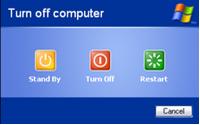
How to Disable the "Turn Off Computer" Button in Windows

With this you can disable "Turn off Computer" button in the "Start Menu".

 
A small registry hack can help you to do this, it works in all versions of Windows XP. Just follow the below steps
Launch Registry Editor.
You need to have administrative privileges for this.
  1. Go to START MENU->RUN-> type regedit.exe in Run dialog box and press enter.

   2. Navigate to HKEY_CURRENT_USER\Software\Microsoft\Windows\CurrentVersion\Policies
       \Explorer 
   3. Right click on the right hand side panel and create a new DWORD value with the name "NoClose"
       Assign the value "1" in value data box


   4. Close the registry editor and restart the computer for changes to take effect.

NOTE:
You can always enable "Turn Off Computer" button on start menu by changing the value of data box to "0" or simply delete :NoClose" DWORD item.

How to disable or enable USB port or device


A. Click on Start –> Run –> regedit

B. Search for the key “HKEY_LOCAL_MACHINE\SYSTEM\CurrentControlSet\Services\UsbStor

C. Select the key UsbStor, double clicks on Start value.

D. In “Value data” enter 4 to disable USB storage, or enter 3 to enable USB storage on windows system


Monday, 23 April 2012

How to backup the registry

Before you edit the registry, export the keys in the registry that you plan to edit, or back up the whole registry. If a problem occurs, you can then follow the steps how-to restore the registry to its previous state.
How to Export Registry Keys
Click Start, and then click Run.
In the Open box, type regedit, and then click OK.
On the File menu, click Export.
In the Save in box, select the boxes at the bottom the bottom according to weather you want to export all or only selected branches of the registry.
Next select a location in which to save the backup .reg file. In the File name box, type a file name, and then click Save.
How to Restore the Registry
To restore registry keys that you exported, double-click the .reg file that you saved.

Saturday, 11 February 2012

How to improve on shutdown time ? Close apps automatically & quickly at shutdown tip:

Open Registry by going to START-RUN and typing REGEDIT. Navigate to HKEY_CURRENT_USER\CONTROL PANEL\DESKTOP and look for AutoEndTasks. On my computer default value is 0. Change it to 1. Thats all. Further more you can reduce the time it takes for Windows to issue kill directive to all active/hung applications. 
In doing this only constraint that you should make sure exists is that HungAppTimeout is greater than WaitToKillAppTimeout. Change the values of WaitToKillAppTimeout to say 3500 (since default value for HungAppTimeout 5000 and for WaitToKillAppTimeout is 20000)

Thursday, 9 February 2012

Rename the recycle bin to whatever you want

1. Start, Run, 'Regedit'.
2. Press 'Ctrl'+'F' to open find box and type 'Recycle Bin' to search.
3. Change any value data with 'Recycle Bin' to whatever name you want to give it ( ie, like 'Trash Can' or 'Dump' etc).
4. Press F3 to continue searching for 'Recycle Bin' and change wherever you come across 'Recycle Bin' to new its new name.
5. Repeat step 4 until you have finished with searching and changed all values to its new name.
6. Close regedit and hit F5 on desktop to see the new name on screen.

Wednesday, 4 January 2012

Change name of recycle bin

You can change the name of Recycle Bin of your system if you wish. It is very easy and interesting but it require some changes in windows registry,  
  • First click on Start button > click on Run option.
  • Type here regedit.exe and press enter then you will find there regedit editor.
  • In regedit editor you will open HKEY_CLASSES_ROOT folder, In this folder open the CLSID folder then open the {645FF040-5081-101B-9F08-00AA002F954E} folder >ShellFolder folder at last.
  • Here simply change the data value from "40 01 00 20" to "70 01 00 20".